Review Solicitation: Collect Customer Reviews & Feedback
BlueSuite review solicitation asks your customers for a review after you finish their work, either automatically or whenever you choose to send one by hand. Based on the rating a customer gives, they are either pointed at your public review platforms or asked for private feedback that only your team sees.
What Review Solicitation Does
- Sends review requests automatically when a job is completed, an appointment is finished, or an invoice is paid
- Sends by email, SMS, or both
- Points happy customers to your public review pages
- Captures lower ratings as private feedback inside BlueSuite
- Tracks your overall rating and every request in one place
Advanced License Required
Review solicitation is available only for BlueSuite workspaces with an Advanced license. You can upgrade your workspace from your BlueSuite Settings.
Step 1: Turn On the Reviews Module
Reviews is on by default. If you need to check, or you want to turn it off:
- Go to Settings, Marketing, Reviews
- Use the Enable Reviews switch at the top of the page
- Click Save Changes
This is the same switch that appears under Settings, Workspace, Modules, and only workspace owners and admins can change it. Turning Reviews off hides it from the sidebar and stops all requests from going out. Your settings are kept, so turning it back on restores everything.
Step 2: Choose How Requests Are Sent
Under How Requests Are Sent, pick Email, SMS, or both. If you pick both, automatic requests go out over both channels, and you can choose per request when sending by hand.
Two things to know about SMS:
- It needs a paid plan that includes SMS
- The customer has to have opted in to text messages on their contact record. A phone number on file is not the same as permission to text it, so BlueSuite will skip SMS for anyone who has not opted in
Step 3: Set Up Automation
The Automation card decides when requests go out on their own. Each job is only asked about once, so you pick a single moment for each kind of work.
One-off jobs
- Don’t ask automatically
- When the job is completed
- When the invoice is paid
Recurring jobs
- Don’t ask automatically
- After each appointment
- Each time an invoice is paid
Recurring jobs are kept separate because they may never reach a finished state. A weekly cleaning or a quarterly inspection is best measured one visit at a time.
How Often to Ask
Once either option is turned on, three more settings appear:
- Don’t ask the same customer more than once every. Choose 30, 60, 90, or 180 days, one year, or only ask once ever. The default is 60 days. Without this, a weekly recurring job would ask the same customer after every single visit
- Wait before sending. Choose right away, 30 minutes, one hour, two hours, four hours, or the next day. The default is two hours, which is long enough that your technician is not still in the driveway when the request lands
- Never ask someone who already left a review. On by default
Automatic requests stay paused until you add at least one review platform link, since there would be nowhere to send a happy customer.
Step 4: Write Your Templates
The Templates card holds two sets of wording, and BlueSuite picks the right one automatically based on what prompted the request.
- One-off jobs and manual. Used when the request is about a job as a whole, or when you send one by hand
- Recurring visits. Used when the request is about a single visit on a recurring job, so it can name the people who did the work
Each template has its own subject line and body, plus an SMS message if you have SMS turned on. A note at the top of each one tells you exactly when it gets sent, based on the automation settings you chose.
The buttons underneath the editor insert variables that get filled in when the message is sent:
- Company Name, Company Email, Company Phone
- First Name, Full Name
- Team Member or Members, Appointment Name, and Appointment Date, on the recurring visits template only
A preview beside the editor shows exactly what the customer will receive, with sample values filled in.
Step 5: Set What Happens After They Rate
The After They Rate card controls where a rating sends someone.
Rating Threshold
- Choose the star rating that counts as a positive experience, commonly 4 or 5 stars
- Ratings at or above the threshold see your public review links
- Ratings below it get a private feedback form instead
A preview on the same card shows both outcomes side by side, so you can see what each customer will land on.
Review Platform Links
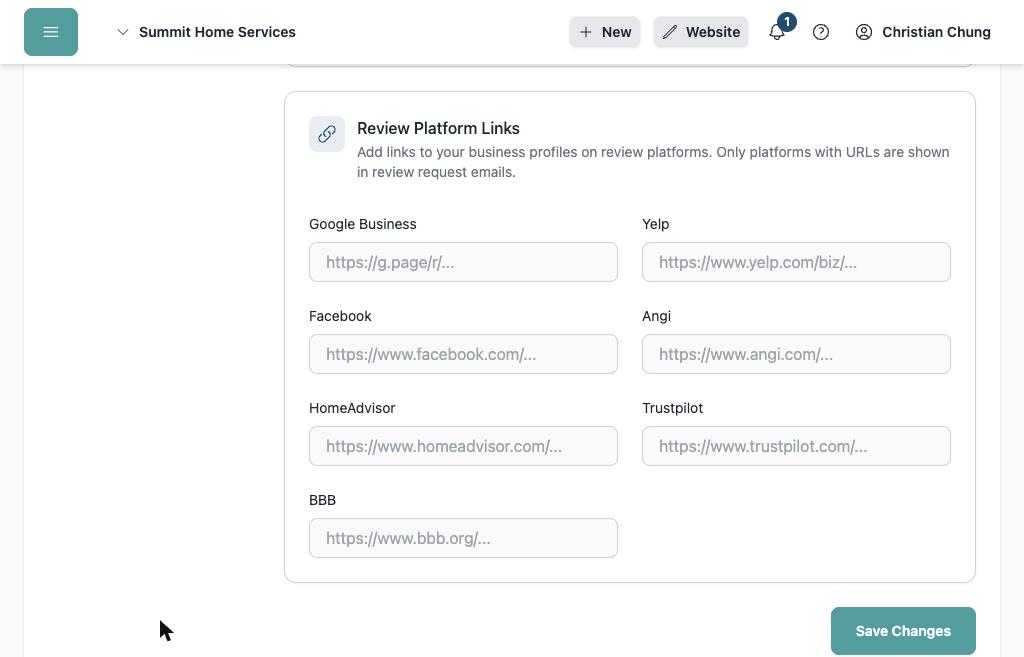
Add links to your business profiles on Google Business, Yelp, Facebook, Angi, HomeAdvisor, Trustpilot, and the BBB. Only platforms with a link filled in are shown to customers.
Under Other Platforms you can add anywhere else you want reviews, such as a trade association or a local directory. Give it a name and a link, and it appears alongside the rest.
Step 6: Ask for a Review by Hand
You do not have to wait for automation. To send a request yourself:
- Go to Reviews in the sidebar, under More
- Click Request Review
- Choose the customer, or create a new one
- Pick email, SMS, or both, edit the message if you want, and send
You can also send one from a customer’s own page using the Request Review button on their Reviews card. Either way the message starts from your saved template with the customer’s details already filled in, and you can edit it before it goes.
Sending both ways still counts as one request. Both messages link to the same page, so whichever the customer opens records the same review.
Step 7: What Customers See
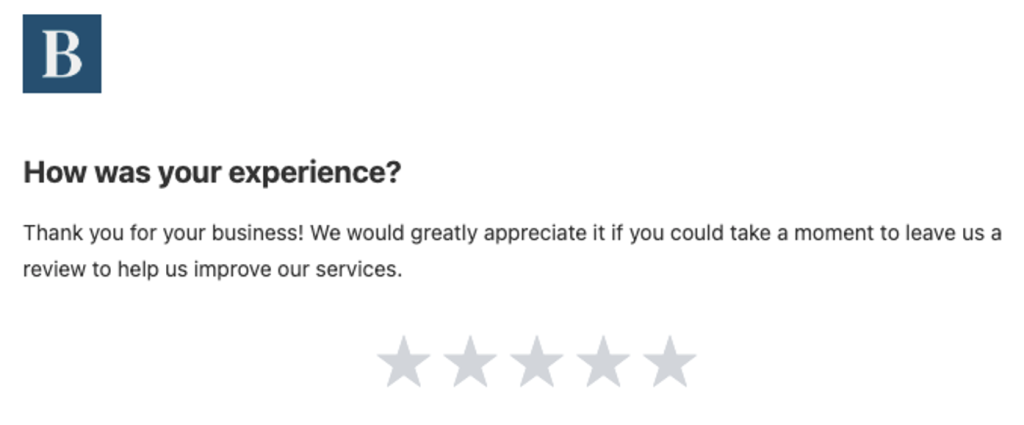
Your customer gets a short message with a star rating scale they can click. They do not need to log in or create an account to respond.
At or Above Your Threshold
- They see links to your public review platforms
- Clicking one takes them straight to your review page

Below Your Threshold
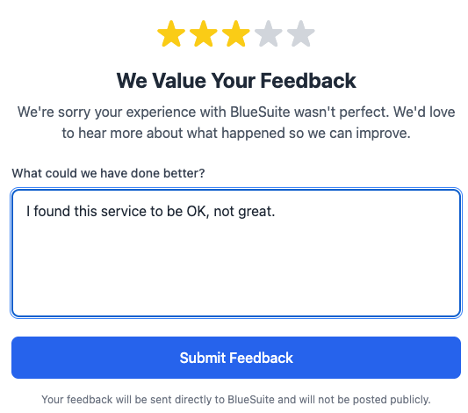
- They are asked for private feedback instead
- That feedback is visible only to your team inside BlueSuite and is never posted publicly
Step 8: Track Your Reviews
The Reviews page shows how you are doing at a glance:
- Your overall star rating, with a breakdown of how many customers gave each rating
- Your average over the last 90 days, so you can see how things are going lately rather than since the beginning
- Requests sent, responses received, and your response rate
- How many customers clicked through to a review platform
Underneath is a table of every review you have received, with the date, the customer, their rating, and the visit or invoice it relates to. Use View Feedback on any row to read what they wrote. Each customer’s own page carries the same table, filtered to just their reviews.
Notifications
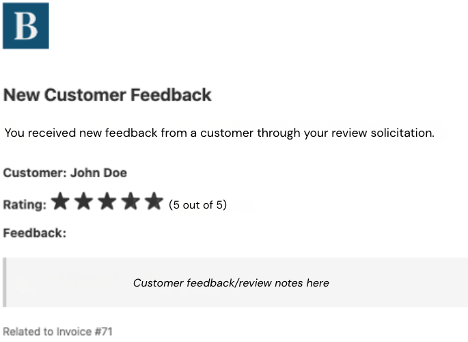
Whenever a customer submits a public review or private feedback, BlueSuite emails your primary business email address, set in Settings, Workspace, General.
Best Practices
- Add your Google Business link first. It is where most customers will look you up
- Ask soon after the work is done. Response rates drop sharply after the first day
- Name your team in the recurring visits template. Customers answer questions about people more readily than questions about companies
- Leave the cooldown at 60 days or longer if you serve the same customers repeatedly
- Read your private feedback regularly. It is the part that tells you what to fix
Summary
Review solicitation turns finished work into public proof. Pick when to ask, write the message once, and BlueSuite handles the rest, sending happy customers to your review pages and keeping the rest of the feedback where only your team can see it.