Upload Company Logo and Set Brand Colors
You can personalize your BlueSuite workspace by uploading a company logo and setting your brand’s primary and secondary colors. These customizations will appear on:
- Customer-facing quotes and invoices
- Your BlueSuite custom website
Steps to Upload Logo and Set Colors
Go to Settings
- From the main menu on the left, click Settings.
Open Workspace
- Select Workspace from the options on the left panel, then open the Branding tab.
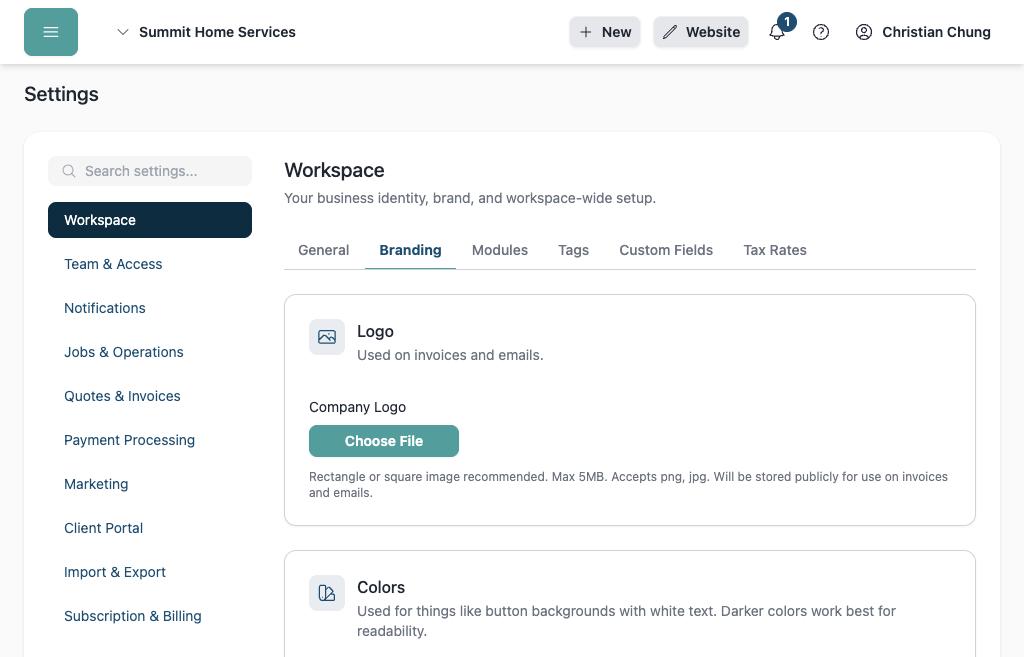
The logo and brand color fields are on the Branding tab.
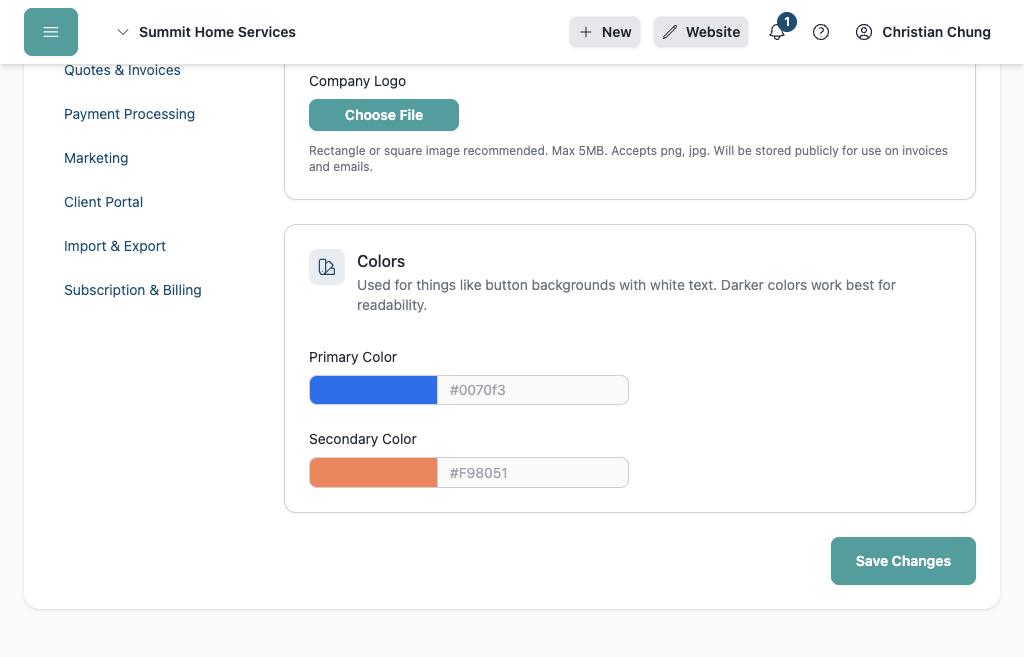
Upload Your Logo
- Click Choose File under Company Logo.
- Upload a
.pngor.jpgfile (max size: 2MB). - Your logo will be displayed on invoices and emails.
Set Brand Colors
- Choose a Primary Color and Secondary Color by entering a hex code or selecting from the color picker.
- These colors will be added to your company’s Marketing Website under the available Theme Color options, allowing you to maintain consistent branding across your site.