Inviting Users to Your Workspace in BlueSuite
BlueSuite makes it simple to add new team members to your workspace. Whether you’re bringing on Admins, Managers, or Members, the invitation process takes just a few minutes. This guide walks you through sending the invite, what the user sees, and how they log into their account for the first time.
Overview
Inviting users requires an Admin or Owner role. All invitations are delivered by email and include a link for the user to set their password and join your BlueSuite workspace.
If you’re not sure which role to assign, review our detailed guide here: Understanding User Roles in BlueSuite
Step-by-Step: How to Invite a New User
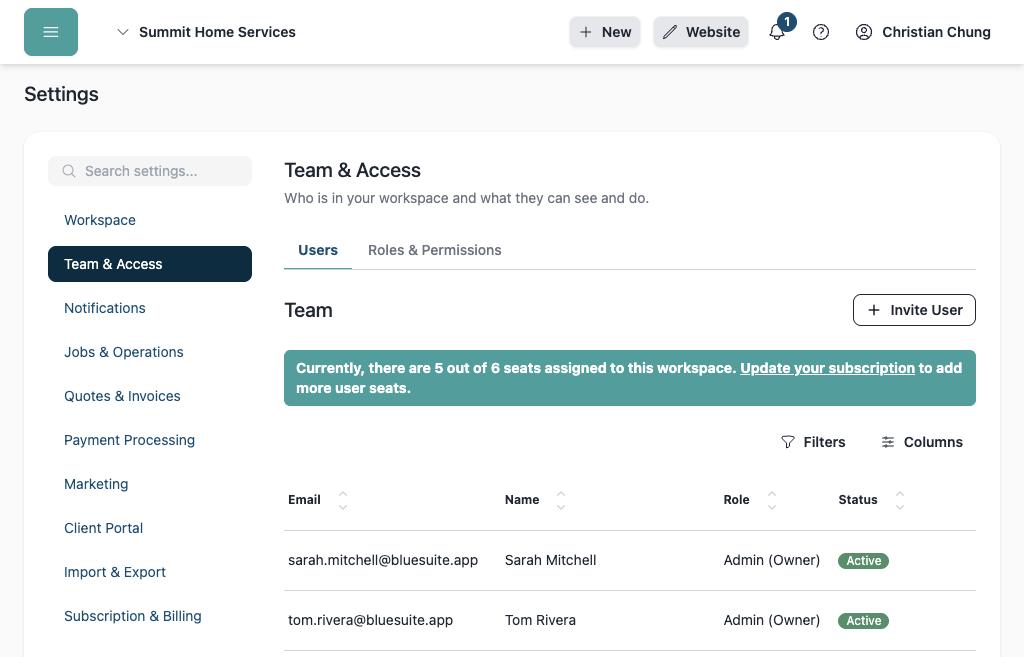
Step 1 — Navigate to Team & Access
- Log into your BlueSuite workspace.
- Go to Settings in the left-hand menu.
- Select Team & Access.
- Click Invite User.
Step 2 — Enter the User’s Information
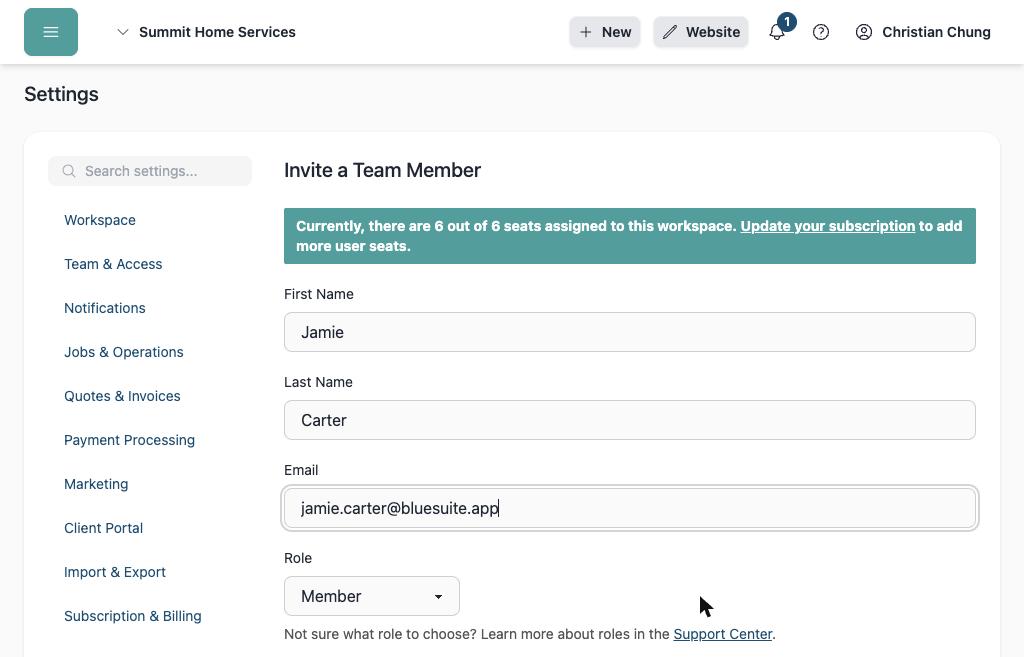
Fill out the new user form:
- First Name
- Last Name
- Email Address (the invitation is sent here)
- Role
- Admin – Full system access
- Manager – Limited administrative access
- Member – Field staff / standard user access
Click Send Invite.
Not sure which role to choose? Check out this support article Understanding User Roles
Step 3 — Confirm the User Appears in Your Team List
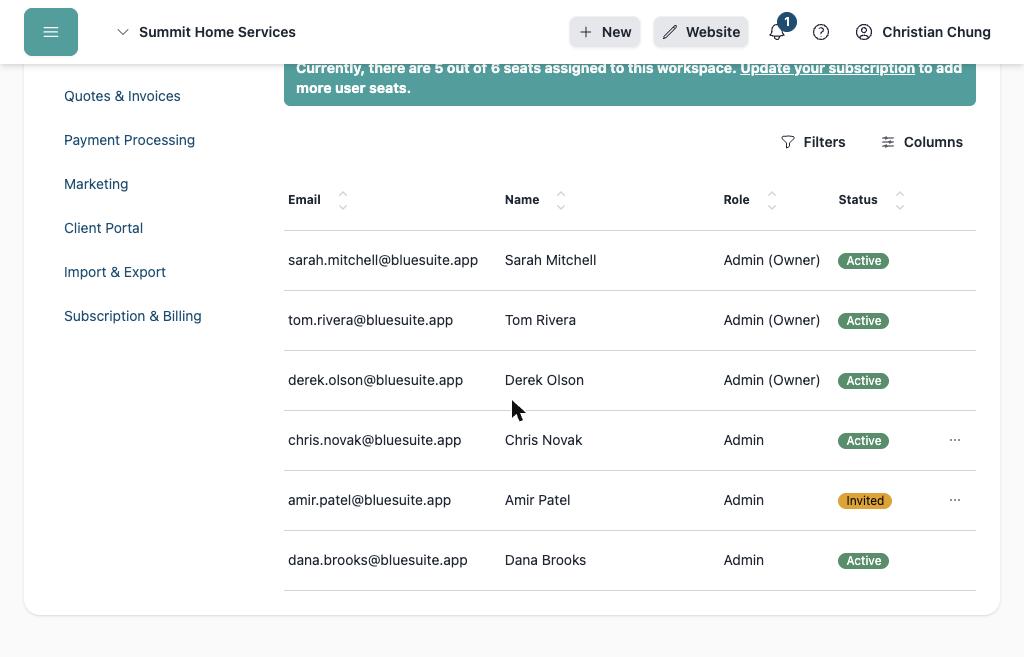
After sending the invite, the new user will appear in your Team & Access list with:
- Name
- Email Address
- Assigned Role
- Status: Pending Invite (until they accept)
What the Invited User Sees
Step 4 — The User Receives an Invitation Email
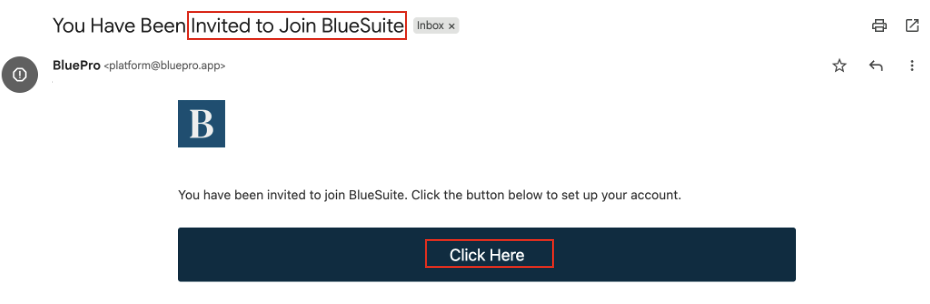
The user will receive an email from BlueSuite with the subject:
“You Have Been Invited to Join BlueSuite”
Inside the email, they will see a button labeled:
“Click Here”
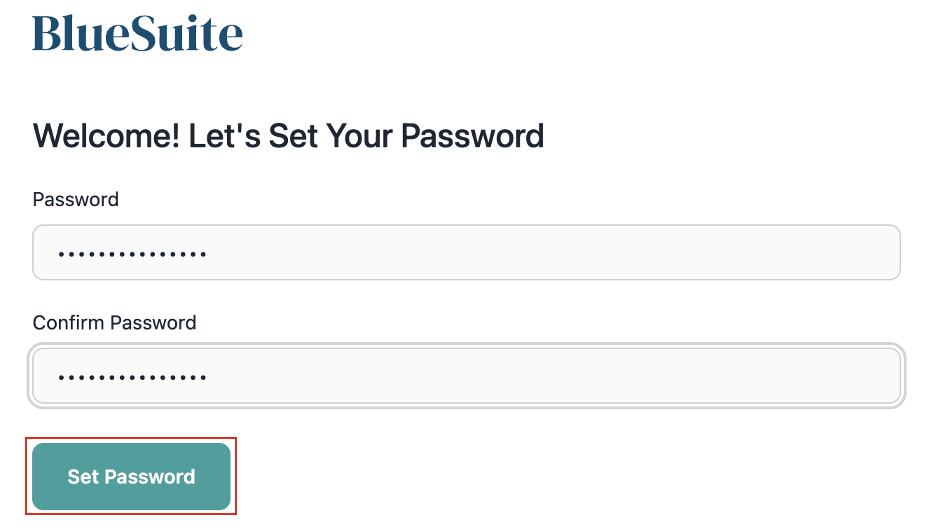
Clicking this opens a secure Password Creation page on BlueSuite.
Step 5 — Create Password & Log In
The user must create a password that meets BlueSuite security requirements:
- Minimum 8 characters
- At least 1 number
- At least 1 special character
After entering a password, the user clicks Set Password.
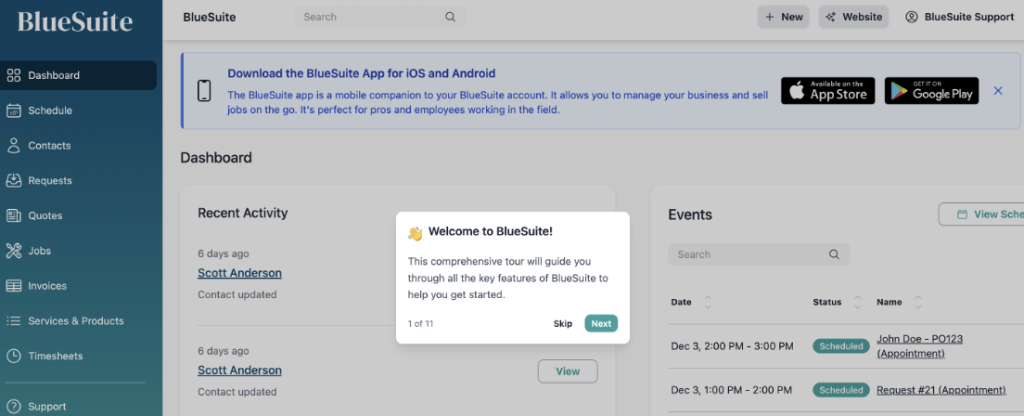
Once accepted, they are automatically logged into your BlueSuite workspace.
Special Notes & Troubleshooting
If “Set Password” Doesn’t Work
If the button doesn’t respond or the link has expired:
- Go to the BlueSuite login page: https://my.bluesuite.app/login
- Click Forgot Password.
- Enter the same email address that received the invite.
This generates a new password reset link that is emailed to you.
If the Page Isn’t Loading or the Link Errors Out
Sometimes browser settings can block the password setup page. Try:
✔ Clear Browser Cache & Cookies
Removes old or broken login data.
✔ Try Incognito / Private Mode
Disables extensions and cached files that may interfere.
✔ Use a Different Browser
Chrome, Safari, Firefox, and Edge are all supported.
Using Google Sign-In
If your email is hosted by Google (Gmail or Google Workspace):
- You can log in using Google Sign-In on the login page.
- Your Google password becomes your authentication method — no separate BlueSuite password needed.
Your User Is Now Active
After completing the password setup (or logging in via Google), the user’s status changes from Pending Invite to Active inside Team & Access.
You can now:
- Assign jobs
- Add them to appointments & events
- Notify them of assigned items
- Track time logs
- Manage permissions