Recurring Appointments, Jobs, & Invoices
Recurring appointments in BlueSuite help service businesses schedule repeat work, automate future visits, and bill for them without manual effort. This is ideal for businesses that rely on consistent service schedules, such as cleaning, landscaping, and maintenance.
This guide explains how to set up a recurring job, how billing works for repeat visits, and how to manage a schedule over time as things change.
How Recurring Billing Works
Recurring billing charges for repeated service visits. To split the price of one job into a deposit and installments, use a payment schedule instead. A recurring job uses appointments in Billing rather than a fixed installment schedule.
With automatic invoicing enabled, each completed appointment creates and sends an invoice for that visit, using its products and services. With manual billing, your team creates the invoices.
This means you only ever bill for work that actually happened. If a visit gets cancelled or skipped, no invoice goes out for it, and there is nothing to void or clean up afterwards.
Because the billing is per visit, so is the checking. With auto invoicing on, the job watches that every completed visit actually produced its invoice and shows a Needs invoicing badge if one of them did not, rather than going quiet once the first visit has billed. With auto invoicing off it stays out of your way, since you may well be covering several visits with a single invoice of your own.
Setting Up a Recurring Job
Step 1: Create the Job
You can start from scratch, or follow the standard workflow:
- Create a request.
- Convert the request into a quote.
- Approve the quote and convert it into a job.
If you are new to jobs, review the Jobs support guide.
Step 2: Set the Schedule Type to Recurring
- Open the job you want to schedule as ongoing.
- In the Schedule section, set Schedule Type to Recurring.
- Click Save.
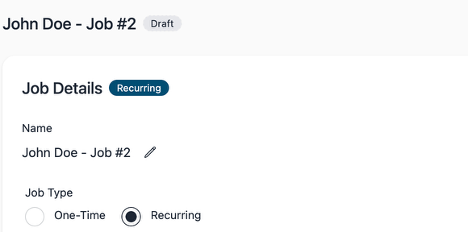
When creating a recurring job, choose its initial billing settings. After the job is saved, use Edit Billing in the job’s Billing section to change how visits are billed.
Step 3: Choose How Visits Get Billed
- Auto Invoicing
On by default. An invoice is created and sent automatically when each appointment is completed. Turn it off to create invoices yourself. Manual billing also turns off recurring autopay. - Autopay Invoices
Charges the customer’s saved payment method as each invoice goes out. This requires Advanced access or an eligible trial, connected Stripe payments, and a saved payment method for that customer. See Saved Payment Methods. - Payment Terms
Due on Receipt, Net 7, Net 14, Net 30, Net 60, or Net 90. Applied to every invoice the schedule produces.
Use Edit Billing to change these settings on an existing job. Billing changes apply to future invoices; existing invoices keep their own settings. Changing the appointment pattern is a separate task.
Step 4: Build the Appointment Schedule
Click Schedule Appointments on the job to open the scheduling window. A calendar preview on the right shows you exactly which dates the pattern will produce before you commit to it.
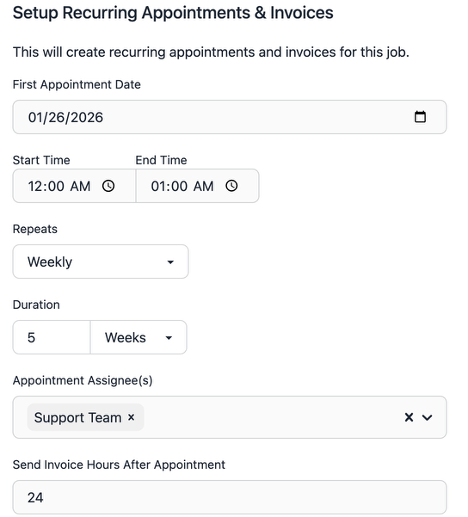
Complete the following:
- First Appointment Date
The date the recurring schedule begins. - Start and End Time
The time window for each visit. You can also mark visits as All Day, Multi Day, or Flexible if they do not need a fixed time. - Repeats
How often the service occurs.- Daily
- Weekly
- Monthly
- Custom: repeat every X days, weeks, or months and pick specific days of the week
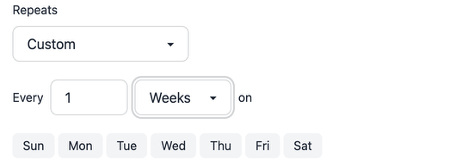
- Duration
How long the schedule runs:- Visits (Total Count): ends after a set number of visits, counting the first one
- X Days
- X Weeks
- X Months
- Forever (Until Cancelled), the default
- Appointment Assignee
The team member or members responsible for the service.
Save when you are done, and the job moves to Scheduled with the visits on the calendar.
Open-Ended Schedules
If you pick Forever, BlueSuite keeps a rolling window of upcoming visits on the calendar and tops it up automatically as time passes, so the schedule runs indefinitely without cluttering your calendar years into the future.
Dates beyond that rolling window still show on the calendar as auto-scheduled placeholders, dimmed to set them apart from booked visits. Scroll ahead to any month and you see the pattern rather than a gap. Drag one or open it and make a change, and it becomes a real appointment on the spot.
When the customer eventually cancels the service, open the job and click End Schedule. You get two choices:
- Cancel all upcoming appointments
Ends the schedule now and clears every visit still outstanding. BlueSuite tells you how many that is before you confirm. - End on a date
Visits through the date you pick still happen, and everything after it is removed.
Either way, completed visits and their invoices are left alone. Use End Schedule rather than deleting the appointments, which would take your history with them.
Where Recurring Schedules Live
Repeat schedules belong to the job. An appointment you book straight from the calendar is always a one-off, whether it is attached to a job, a request, or nothing at all, so there are no recurrence settings in the appointment window. This keeps a single schedule per job instead of competing ones, and it is what lets billing follow the visits.
To add or change repeat visits, go to the job and use Schedule Appointments or Edit Appointments. Internal events and tasks are different: those can still be set to repeat on their own from the calendar. See the Events support guide.
Viewing Visits and Invoices
The job shows its appointments and their billing progress. Billing uses appointment rows rather than fixed installments, and canceled appointments are excluded. With automatic invoicing, completed visits produce their invoices through the completion workflow. With manual billing, completed visits are ready for your team to invoice.
The appointment list is one continuous timeline rather than numbered pages, since an open-ended schedule has no last page. It opens on today and you step forward or back with the arrows, seeing booked visits and auto-scheduled ones together in date order.
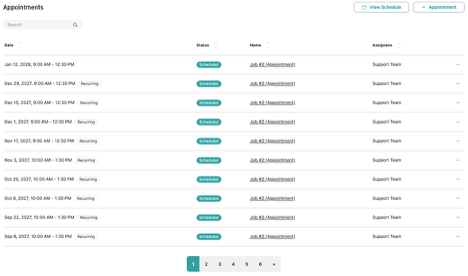
For more details on invoices, see the Invoices support article.
Editing a Recurring Schedule
You do not need to recreate a series to change it. Open the job and click Edit Appointments. The window opens on the next upcoming visit, and you can change the date, the times, the repeat pattern, the duration, or who is assigned.
Changes to the pattern rebuild the upcoming appointments. Visits that have already happened are kept exactly as they were, so your history and the invoices tied to it stay accurate. Changing only the assignees updates the upcoming visits in place.
One thing to watch: changing the pattern resets any per-visit product customizations on upcoming appointments. If you had tailored the line items for a specific future visit, you will need to set those up again.
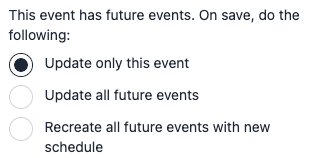
To move or adjust a single visit, open it from the calendar and edit it there. Changes stay on that one appointment and the rest of the schedule carries on unchanged, so a one-off reschedule never rewrites the pattern.
Billing One Visit Differently
Sometimes a single visit is not like the others: an extra service, a larger job, a one-time add-on. Open that appointment and click Customize to set the products and services for that visit alone.
The invoice created when that visit is completed uses your customized line items, with the job’s discount, tax, and deposit applied on top. Every other visit keeps billing from the job as normal, and the appointment shows a note that it has been customized.
Missed and Skipped Visits
If a visit is cancelled, mark the appointment as Cancelled. No invoice is created for it and the rest of the schedule carries on unaffected.
If a visit date passes without anyone marking it complete, BlueSuite flags the appointment as Missed and shows a Missed badge on the job so it does not quietly disappear. Rescheduling the visit to a future date clears the flag.
When a Recurring Job Closes
A recurring job stays open for as long as its schedule is producing work. It will not close itself while visits are still to come, which is what you want for ongoing service.
Once the schedule has ended and every visit has been completed and paid for, the job completes on its own. If the last invoice is out but not yet paid, the job shows Awaiting payment in the meantime, so you can tell the difference between a schedule still running and one that is finished bar the money. You can also close the job by hand at any point using Mark job complete on the job page.
Summary
Recurring jobs in BlueSuite let you:
- Schedule ongoing service on any repeat pattern, for a set number of visits, until a date, or open-ended
- Bill automatically for each visit as it is completed, so you never invoice for work that did not happen
- Charge saved payment methods automatically with autopay
- Customize the products and services on a single visit without touching the rest
- Adjust upcoming visits without disturbing past records
- End a schedule cleanly when the customer cancels, keeping all history